Make YouTube subtitles easier to read: size, color and position
Good-looking subtitles must first be readable. Start with small changes, then test bright scenes, dark scenes and full-screen viewing.
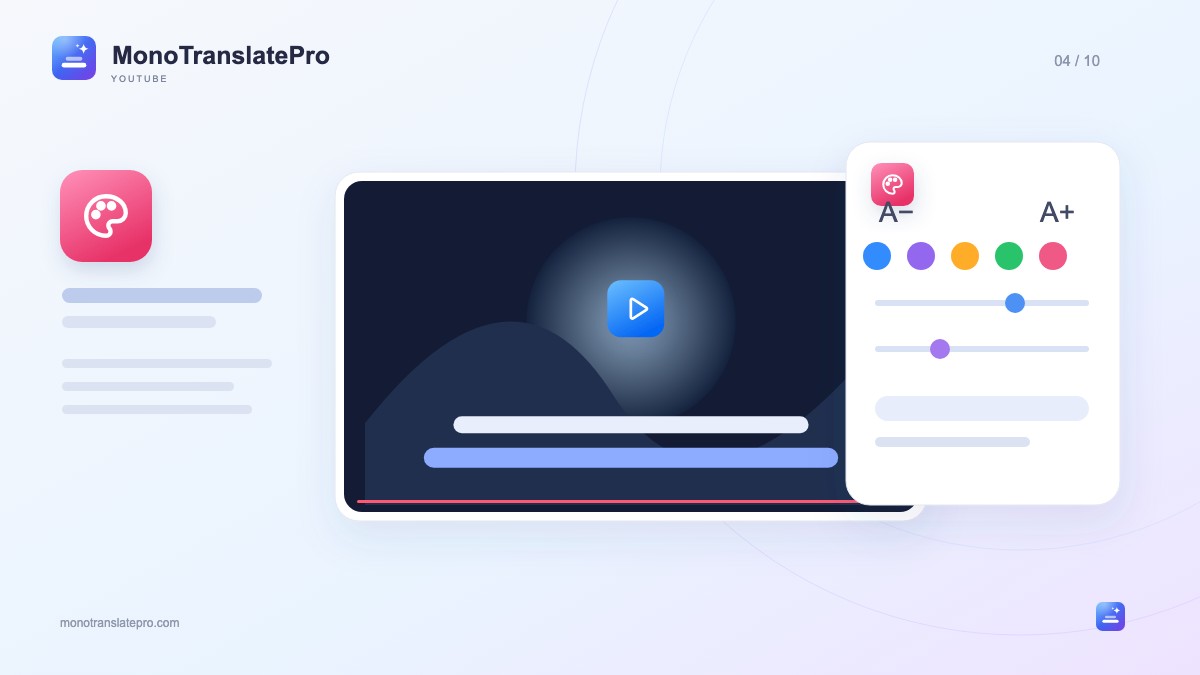
- Style each line separately so your eyes recognize the original and translation.
- Check readability across several scenes, not only the preview.
- Change text size or position quickly in Mono’s player bar.
In this article
1. Choose your main reading line
Mono has separate font, size and weight settings for the original and translation. For understanding the video, you might make the translation slightly larger. For foreign-language reading practice, keep the original clear enough to find easily.
2. Choose text size for your viewing distance
The right size depends on your screen, seating distance and sentence length. Oversized text can cover too much of a laptop screen; tiny text is hard to read farther away. Test with a reasonably long sentence.
3. Use color and background to keep text clear
Text that looks great in a dark scene may disappear against the sky or a white table. Mono lets you adjust text color, outline, shadow and background. Choose enough contrast to handle scene changes rather than judging one frame.
Try light text with a suitably transparent dark background. If you dislike a box, try outline or shadow. This is a starting point, not a compulsory formula for every video.
- Check at least one bright and one dark scene.
- Avoid nearly identical text colors if they make the lines hard to distinguish.
- Leave enough of the image visible when darkening the background.
4. Keep subtitles away from important details
Bottom placement is familiar, but tutorials may show figures, actions or labels there. Change position in Mono or drag subtitles to a suitable spot. Avoid covering hands, charts or information you need to see.
Check when YouTube’s controls are visible too. A position that works with a clear player may be hard to read above controls at the bottom. Test size and placement again in full screen.
5. Match the animation to the video’s pace
Mono offers subtitle entrance animations. Subtle movement can help you follow fast dialogue; slower videos give you room to try another effect if it feels comfortable.
6. Make quick changes while watching
Mono’s player button lets you choose visible lines, switch language, resize and reposition subtitles without leaving the video. For deeper font, outline or background settings, open subtitle styling in the panel.
A simple setup is enough to begin. With each new video, change only what causes trouble: small text, bright backgrounds or placement covering the picture. Keeping a consistent display helps you concentrate on the content.
Keep this in mind
Choose your main line, make it clear and check its position. Comfortable subtitles let you read without losing sight of the video.

The MonoTranslatePro team shares extension guides and ways to learn from real videos.