What is a Gemini API key? Use it with Mono without coding
An API key lets Mono send translation requests to Gemini using your project. Create a key, paste it into the extension and understand a few basic statuses.
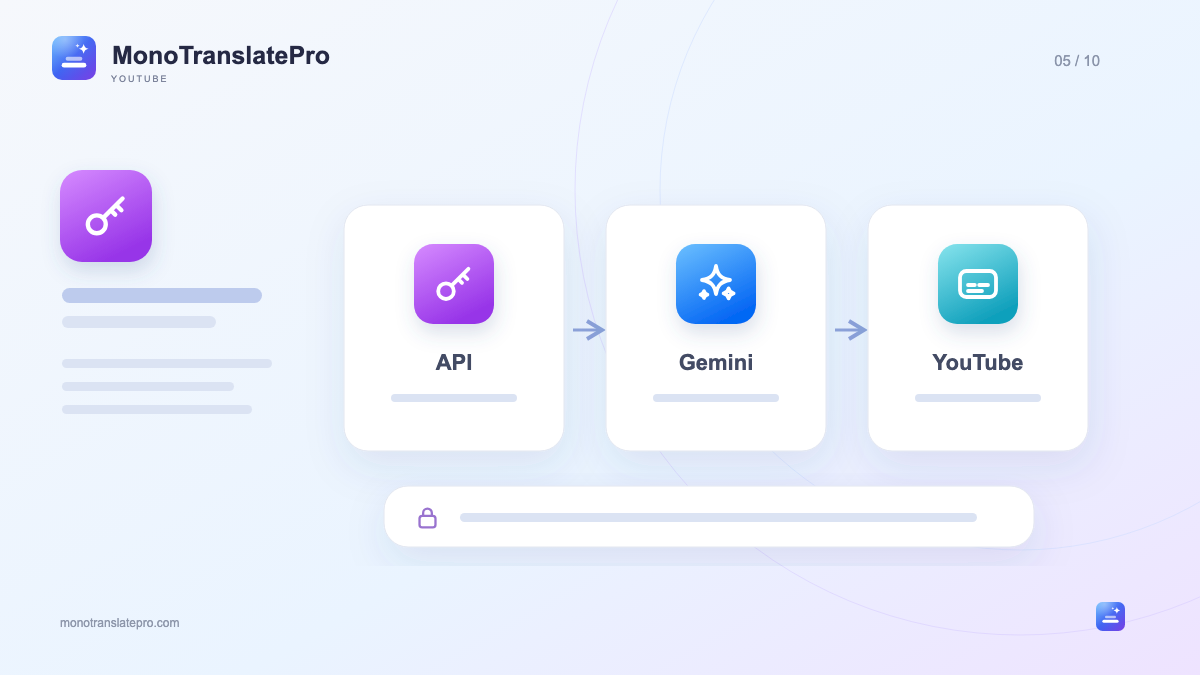
- Professional Translation uses your own Gemini API key; Fast Translation needs none.
- Google limits depend on project and model; extra keys in the same project do not increase them.
- Your Mono plan and Gemini usage are separate things to understand.
In this article
1. Understand APIs through a familiar idea
Think of an API as a way for two applications to send requests to each other. With Professional Translation, Mono prepares content and calls Google’s Gemini service. Gemini returns results that the extension shows alongside the original subtitles.
2. Which mode needs a key?
Fast Translation needs no Gemini API key and is useful for quickly getting the gist. Professional Translation uses Gemini through your key to process dialogue context. Connecting a key is therefore a setup step for Professional mode. Mono saves your key for reuse and automatically selects or switches to an available Gemini model when needed. Google’s free tier is a useful starting point for everyday viewing, within your project’s current limits.
3. Create a key and paste it into Mono
Open Google AI Studio with your Google account. In API keys, create a key for a suitable project and copy it. Google’s button names and options may change; consult the official documentation below for current guidance.
- Open Mono’s panel and find the Gemini API key field.
- Paste the complete key without extra spaces or other text.
- Wait for Mono to check the connection and read the status.
- Choose Professional Translation, a target language and a short subtitled video.
4. Why can a valid key still require waiting?
Google limits requests and processing over time. Limits depend on the project, model and access tier; creating another key in the same project does not increase them. Check your current limits in Google AI Studio.
Mono can look for another suitable model when a model reaches a limit that permits switching. This does not provide unlimited translation: if no model is available or the service has problems, read the status and wait. Repeatedly starting translation does not increase limits.
For everyday viewing and learning, Gemini API’s free tier can be a convenient starting point. Enter your key once and Mono reuses it; watch your actual limits in Google AI Studio to choose suitable video lengths. Limits are granted by Google and depend on your project.
5. Separate your Mono plan from Google’s service
Your Mono subscription covers access to Mono’s software and the features in your plan. Gemini is a separate Google service, with free or paid usage depending on your project and settings. Buying Mono does not automatically change billing or quotas in Google AI Studio.
6. Keep the key private and follow status messages
Treat your API key as private: do not put it in comments, public screenshots or support requests. If exposed, manage it in Google AI Studio following Google’s guidance, then update the appropriate key in Mono.
If the connection fails, check that the whole key was copied and is still active. For limit messages, check project usage. For support, send only the message, a screenshot with private details hidden and the relevant video link.
Keep this in mind
Remember three things: the key connects Gemini, Google manages the limits and the key must stay private. Mono handles requests and displaying the translation.
The MonoTranslatePro team shares extension guides and ways to learn from real videos.