Automatic Gemini connection: paste your key once and keep watching
Provide your Gemini key once. Mono saves it in your Chrome profile and checks the connection, making later viewing sessions easier.
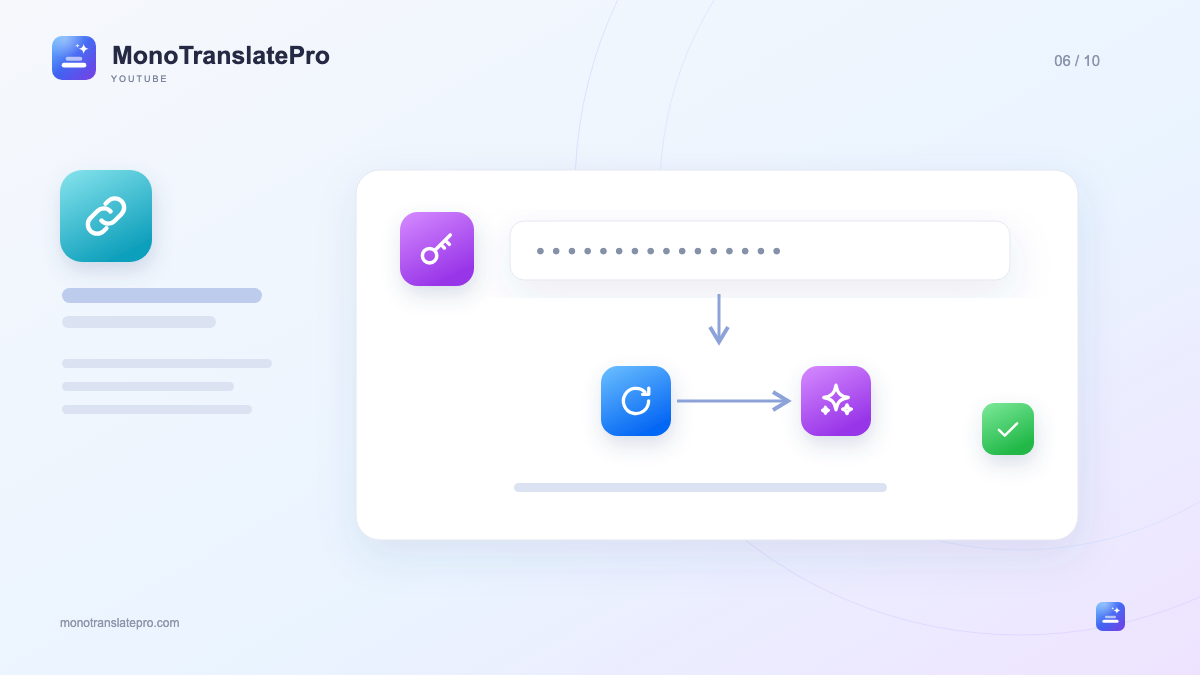
- Get your own key from Google AI Studio and paste it into Mono.
- The saved key is reused in the same Chrome profile.
- Switching to an available model still depends on Google access and limits.
In this article
What does automatic connection mean?
You open a video, choose Professional Translation and want to watch without re-entering a long string. That is the purpose of MonoTranslatePro’s Gemini connection. After you supply an API key, the extension saves it for later translations in the same Chrome profile. Mono can also select or switch to an available Gemini model automatically when needed. The free tier is a practical starting point for daily viewing, subject to Google’s current project limits.
Automation starts after you paste the key. Mono does not create a key, sign in to Google for you or take one from an open tab. You choose the key belonging to your own Google account or project.
Connect for the first time in three steps
Open the extension’s Settings and find Gemini API. The get-key button leads to Google AI Studio. Create or choose a valid key there, copy it and return to Mono. Paste it in the Gemini API key field; the extension saves it and checks the connection. You can also select Save & Connect to check immediately.
Once ready, open a subtitled video, select the target language and Professional Translation. Try a short video first to see the result without waiting through a long interview.
Must I enter it again tomorrow?
Within the same Chrome profile, Mono keeps the saved key to check and reuse. You can close the browser and return later. Another computer or Chrome profile needs separate setup; do not assume the key appears everywhere.
How does Mono choose a model?
Mono checks which Gemini models are available to your key. If a model reaches a limit or cannot serve the request, the extension can try the next suitable model. The connection status can show the active model’s name.
This uses available options but creates no extra quota. If your Google project has exhausted its limits or all suitable models are unavailable, wait or check limits in AI Studio. Another key in the same project does not double your quota.
When the connection is not ready
First see whether Mono reports a missing key, invalid key or a wait for the service. Check the complete key, correct Chrome profile and internet connection. Then use Check in Gemini API settings. If Google reports limits, read your project’s limit details before retrying repeatedly.
Keep this in mind
Set it up once and follow clear statuses: Gemini connection becomes a simple part of watching YouTube instead of a repeated task for every video.
Learn more from official sources
The MonoTranslatePro team shares extension guides and ways to learn from real videos.